


Virginia Crisis Connect (VCC) information for Providers
The Virginia Crisis Connect (VCC) Platform is a comprehensive online platform used by thousands of public and private providers. It includes several components: a crisis call center, a mobile crisis response dispatch center, a data entry interface for specific crisis services (like the REACH program), a crisis facility bed registry, an inter-provider referral interface, and a follow-up interface. The VCC strives to facilitate the delivery of various crisis services across Virginia and collect data related to these services.
The VCC aims to quickly and efficiently connect Virginians in crisis with appropriate and nearby services. It strives to address a wide range of crisis situations by utilizing the full spectrum of crisis care providers, both large and small, across the state.
VCC Access
How to access the Crisis Data Platform
Before requesting access to the Behavioral Health Link (BHL) crisis data platform, you must have an active license issued by DBHDS and a signed Memorandum of Understanding (MOU) with your Regional HUB.
You can find Regional HUB contacts and additional training information in the Regional HUB Contacts, MOUs, and Mandatory Training section on this page.
Provider Registration
The Provider Access Request Form must be submitted by your agency’s MOU Contact before submitting any User Access Request Forms. If your agency is not currently registered in the BHL Crisis platform, please contact your Regional HUB.
- Fill out the Provider Access Request Form (This form is to add a new Service provider/Agency into the Crisis platform).
- To download the Provider Access Request Form, click here.
- The form must be signed by the MOU Contact (Lead or Admin) of the Regional HUB.
Be sure to include a real or digital signature in the box labeled “Authorizing Approver’s Signature Image”. The form may be completed using the PDF Fill & Sign feature in Adobe Acrobat/Adobe Reader, or by printing, signing, and scanning the document.
- Send the completed form along with a completed Account admin request form to crisis_services@dbhds.virginia.gov.
Please allow 2-3 business days for us to process the request.
Admin duties: Adding/Removing/Modifying Users
All users must complete mandatory training before gaining access to the BHL crisis platform. For more information on the training, please contact your Regional HUB.
Each provider must designate a Provider Account Admin who will be responsible for maintaining user accounts for your agency. Each provider is allowed two Provider Account Admins per agency.
Download the Account Admin Request Form.
- The form must be signed by the MOU contact (Lead or Admin) for your agency. Be sure to include a real or digital signature in the box labeled “Authorizing Approver’s Signature Image”. The form may be completed using the PDF Fill & Sign feature in Adobe Acrobat/Adobe Reader, or by printing, signing, and scanning the document.
- Send the completed form to crisis_services@dbhds.virginia.gov
- Email must be sent by or cc the MOU Contact, lead, or admin
- If not sent by the MOU Contact, lead, or admin, we will have to contact them to confirm the user, which adds time to the process
- Please allow 2-3 business days for us to process the request.
Once the Account admin access request is processed for new users added to the VCC, the user will receive an email with login directions. If the user does not receive the email, they can go to the BHL Login Page and choose the Reset Password button to trigger the email to send again. Remember to check Junk/Spam folders.
VCC Platform Login Resources
Login Guide to BHL: VCC BHL Login Guide
User Access Request Form: User Access Request Form
Training Site: https://app-tng.behavioralhealthlink.com/sign-in
Live Site: https://app.behavioralhealthlink.com/
2-Factor Authentication: https://youtu.be/52AXoQ1HPW4
Mobile Crisis and Community Stabilization: https://youtu.be/vTskAKzOZ2I
Emergency Services: https://youtu.be/oGrN7K2w6Hs
BHL Platform Support Portal: https://help.behavioralhealthlink.com
To assist with log-in and the receiving of related log-in materials, make sure your organization has allowed the use of the Microsoft or Google Authenticator apps on your phone, and that the agency has enabled emails and access to the two URLs below:
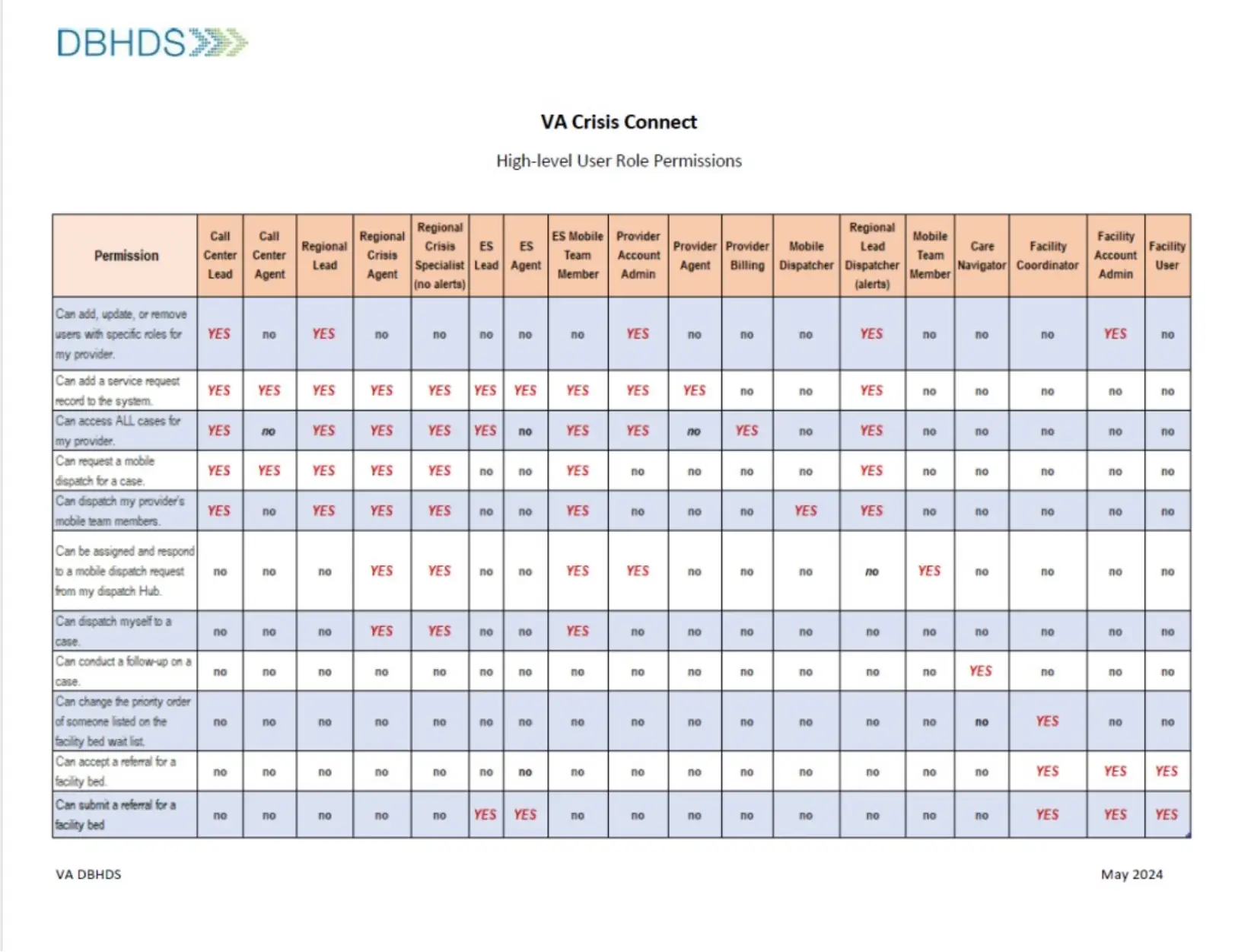
Users in the Provider Account Admin, Call Center Lead, Regional Lead roles have permissions to add, remove, and modify users for the following roles. If a user in one of these roles needs to be added, modified, or removed, please contact your organizations Account Admin or Lead user for assistance. Please reference the How to Add/Update Your Users Guide for instructions to manage users in the VCC.
- Provider Agent
- Provider Billing
For all other user roles, please follow the steps below to submit a User Access Request Form to DBHDS to add, remove, and modify users.
See Understanding User Roles in the Crisis Data Platform for more information on user roles.
- Fill out the User Access Request Form.
- The form must be signed by an identified Lead or Admin of your agency. Be sure to include a real or digital signature in the box labeled “Authorizing Approver’s Signature Image”. The form may be completed using the PDF Fill & Sign feature in Adobe Acrobat/Adobe Reader, or by printing, signing, and scanning the document.
- Send the completed form to crisis_services@dbhds.virginia.gov
- Email must be sent by or cc the MOU Contact, lead or admin
- If not sent by a lead or admin, we will have to contact them to confirm the user, which adds time to the process
- Please allow 2-3 business days for us to process the request.
Once the user access request is processed for new users added to the VCC, the user will receive an email with login directions. If the user does not receive the email, they can go to the BHL Login Page and choose the Reset Password button to trigger the email to send again. Remember to check Junk/Spam folders.
Crisis Data Platform and BHL User Guides
Regional HUB Contacts, MOUs, and Mandatory Training
Your agency will need a signed MOU with your Regional HUB before requesting access to the crisis platform. Each of the Hub mailboxes are listed below, please contact the Hub for the Region for which you will serve.
Regional HUB Contacts
Region 1: Reg1Hub@regionten.org
Region 2: R2CrisisHub@fairfaxcounty.gov
Region 3: RegionalMobileCrisis@nrvcs.org
Region 4: Region4hub@rbha.org
Region 5: R5hub@wtcsb.org
For mandatory training, please email your Regional HUB to begin the process of signing up and/or registering for the required Mobile Crisis Response Training. Please note, Sentara Health is providing the training as well.
Regional HUB Contacts
Region 1: Reg1Hub@regionten.org
Region 2: R2CrisisHub@fairfaxcounty.gov
Region 3: RegionalMobileCrisis@nrvcs.org
Region 4: Region4hub@rbha.org
Region 5: R5hub@wtcsb.org
Sentara Health: BHTrainer@sentara.com
Frequently Asked Questions
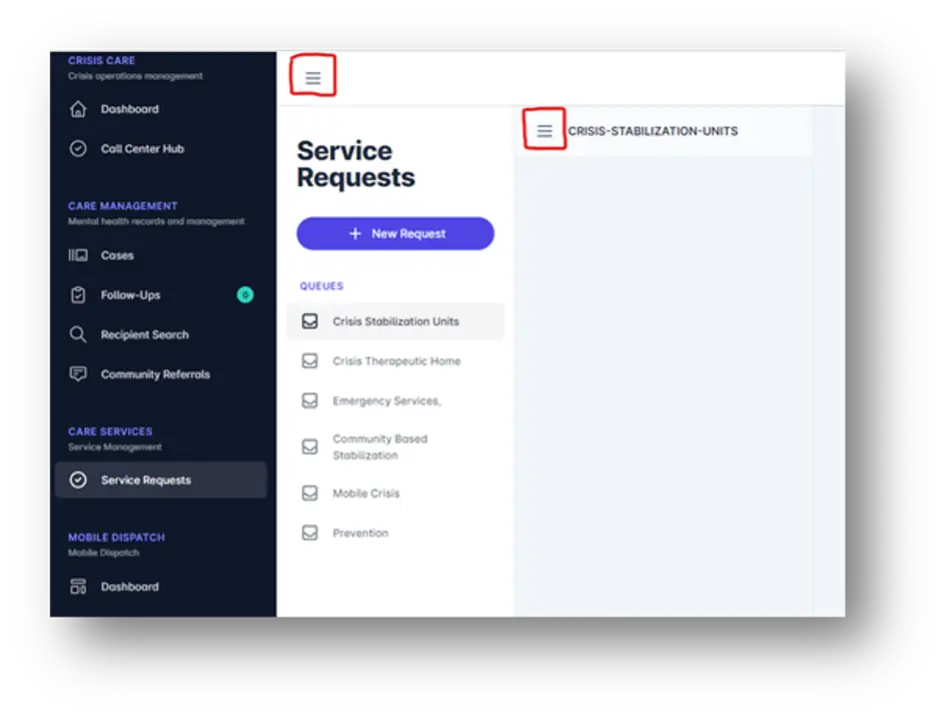
Why can’t I see the whole screen?
There are three stacked lines in two places that when clicked will modify your view by collapsing and expanding a portion of the viewable area for better visibility.
How do I upload documents?
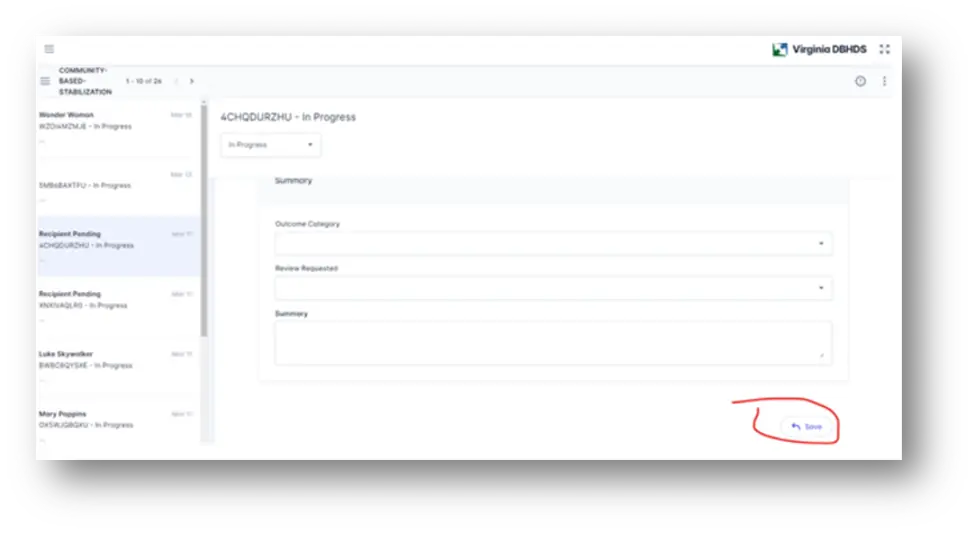
Go to the care plan section and add the document you will be uploading in the summary, under the section you are working on, click upload. Scroll to the bottom and click save. It may not currently look like the document recently uploaded, but after you save and re-open the case you should no longer see an upload button and only see a download button- this means your document is there.
Why did the recipient I entered disappear?
The recipient is still pending. If you entered someone’s name and the name “disappeared” it is because you did not go to the care plan page and scroll to the bottom and hit save.
What do the Case Statuses mean?
In progress means you are still in the assessment phase. Open means you continue to deliver services. Closed means all services for this episode of care has ended.
To save the change in status, choose the correct status, scroll to the bottom hit care plan, scroll to the bottom of the second page and hit save.